Where do my files live?
On the Anexton device in your office.




Storage, sign-in, access, and recovery are managed on one screen.
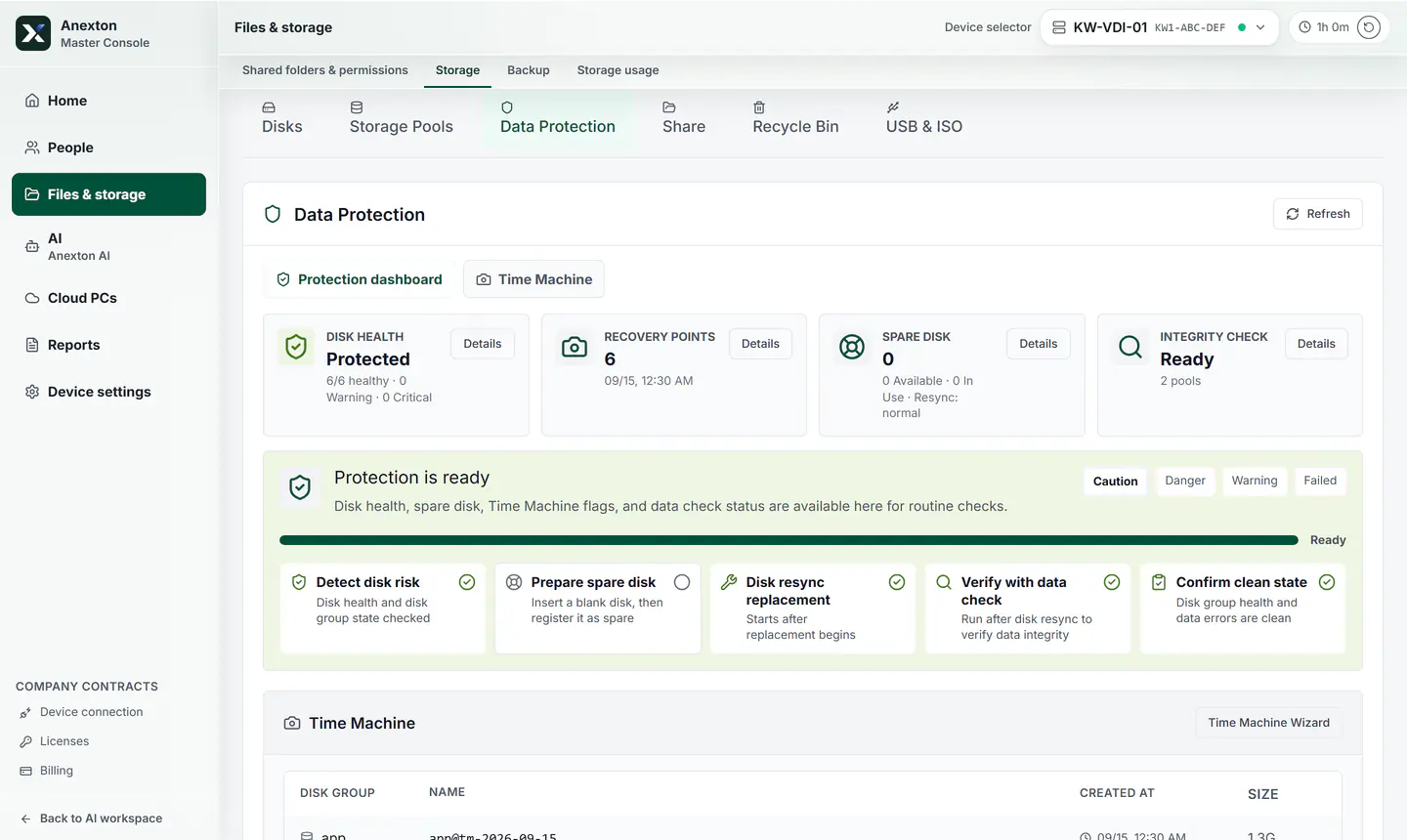
Start with the basics
On the Anexton device in your office.
Folder permissions open only the folders each person needs.
Authenticator or email two-step verification is available.
Restore from the recycle bin or automatic backups.
Only files the employee can already open. Personal identifiers are masked automatically.
It starts only after approval. The record cannot be edited.
How AI answers
An employee asks in plain words.
Only files in folders that employee can open are searched.
ID and account numbers are masked automatically.
The answer names the files and pages it used.
Technical controls
When verification fails, nothing proceeds.
Argon2id password hashing, RFC 6238 TOTP, HttpOnly Secure cookies.
State-changing requests pass CSRF checks. Failed authentication or authorization is denied.
Updates and licenses are applied only after signature verification.
Starts after consent, and the session is recorded.
Choose storage, access, and backup coverage first.