Cloud PCs per employee
Create and assign each employee's Cloud PC from one place.




A managed Cloud PC employees can open anywhere
Create and assign employee Cloud PCs from one console. Employees reopen the same screen from the office, home, or field.
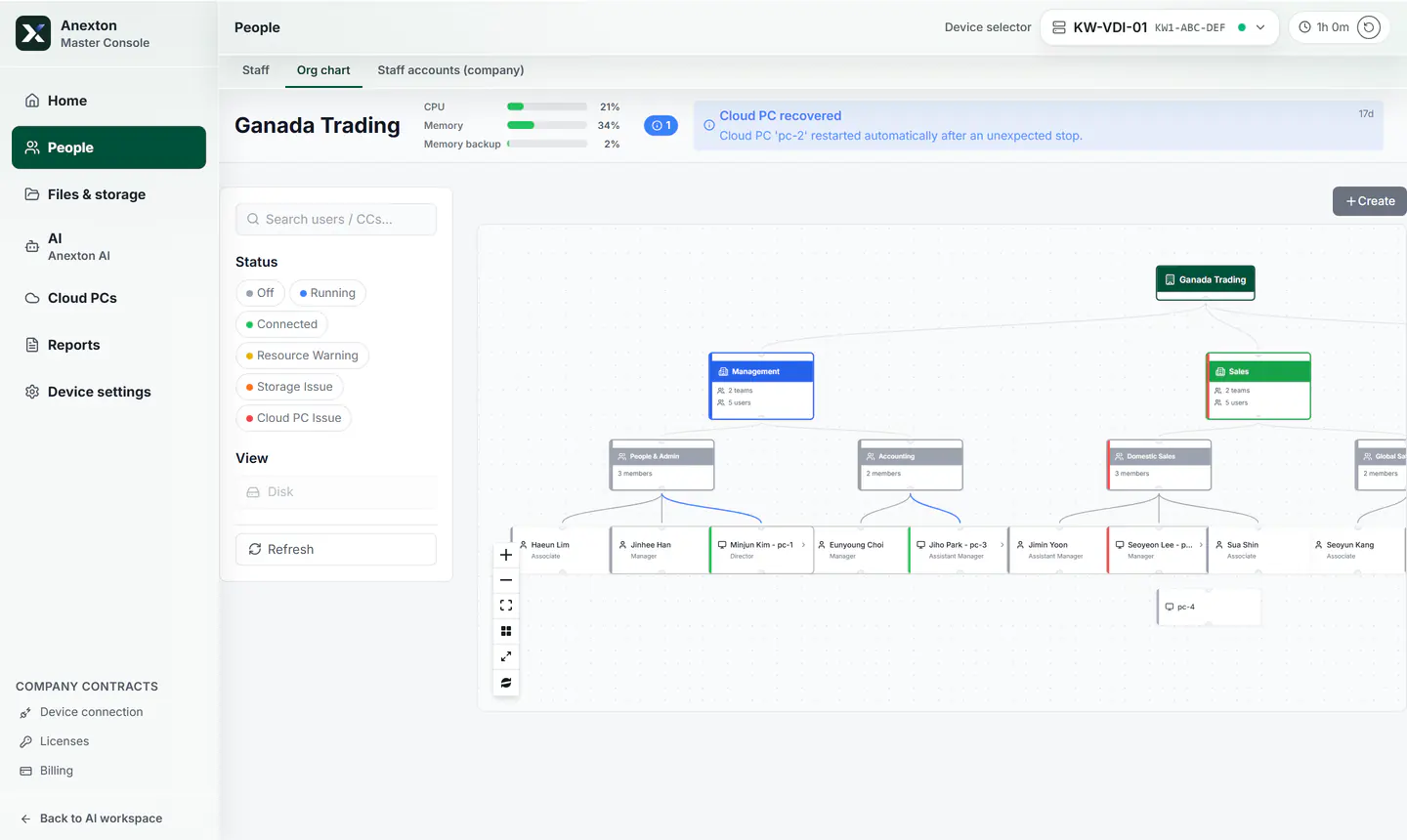
See departments, teams, staff, and each person’s Cloud PC on one org chart.
Create and assign each employee's Cloud PC from one place.
Same apps and file locations wherever you open it.
Desk PCs only open the screen.
Files stay on your office device even when opened from outside.
Current console screens, captured with a sample company’s made-up data. Open any screen to see each highlighted part explained.
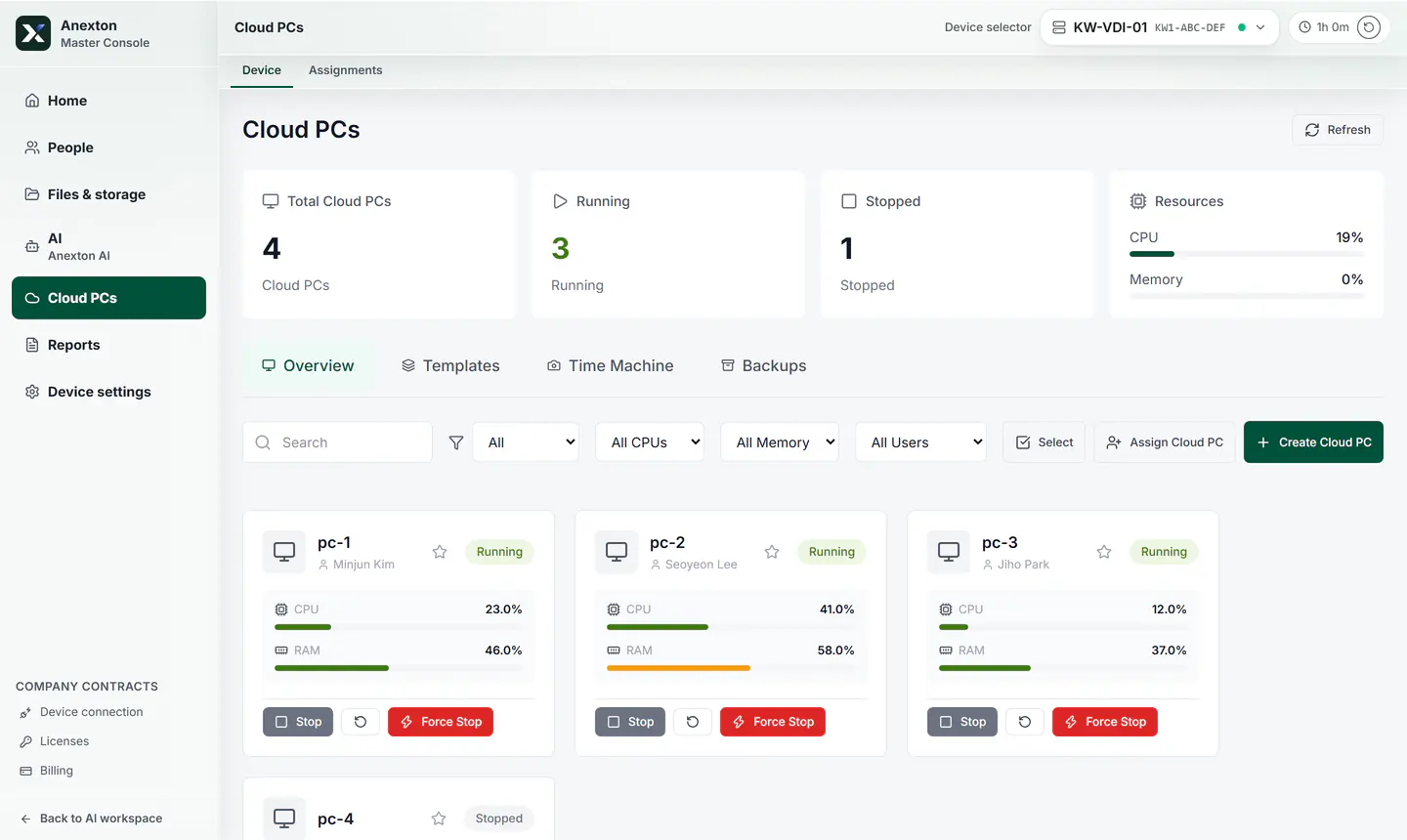
See first whether each employee’s Cloud PC is on and how busy it is.
Total, running, and stopped Cloud PCs and overall usage come first.
Each card shows whose Cloud PC it is and how busy it is.
Add a Cloud PC with one button when someone joins.
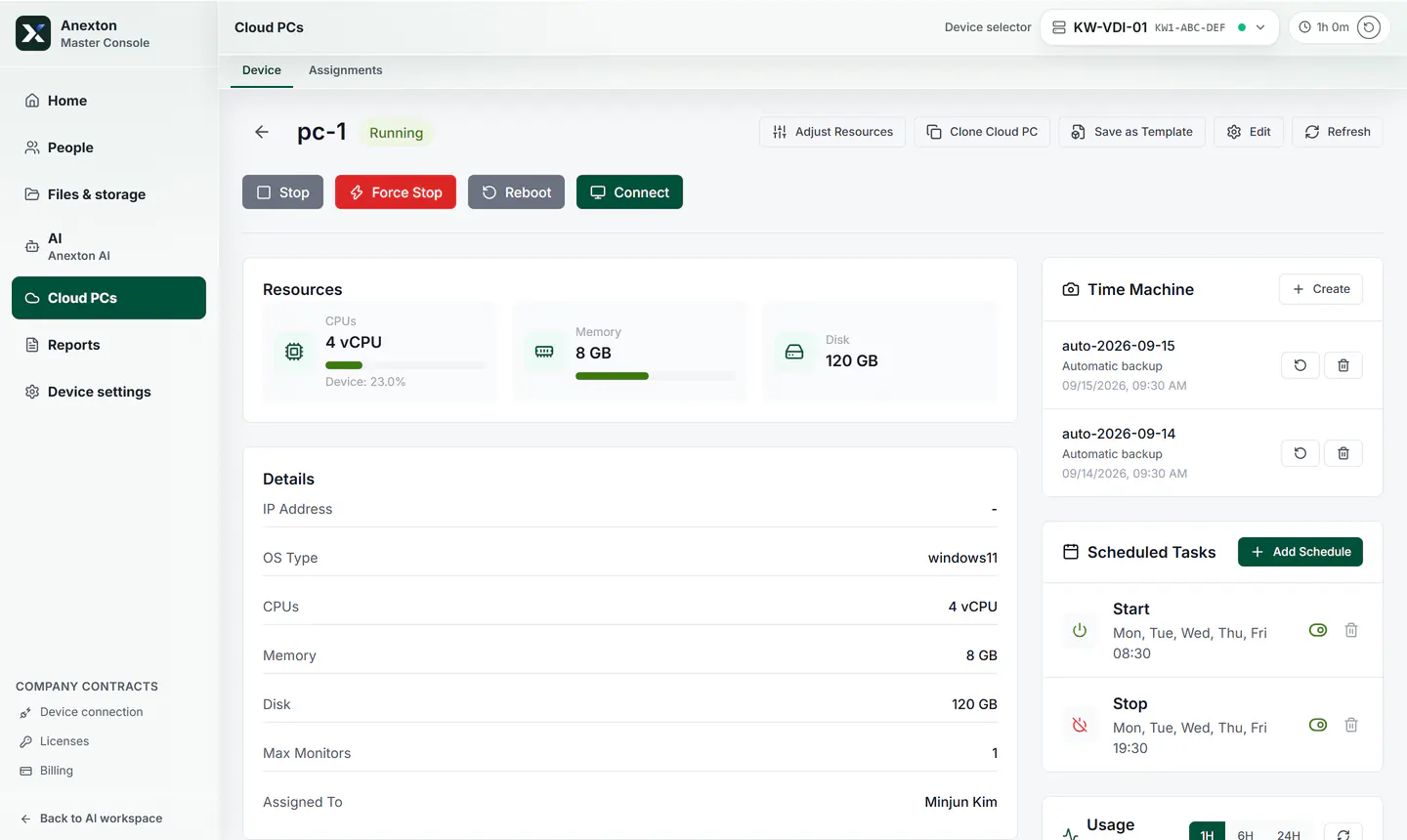
The connect button, resources, automatic backups, and a weekday on/off schedule — all on one screen.
Stop, restart, and connect from one place.
See processor, memory, and disk at a glance.
Automatic backups are kept and listed by date.
Schedule it to start each weekday morning and stop in the evening.
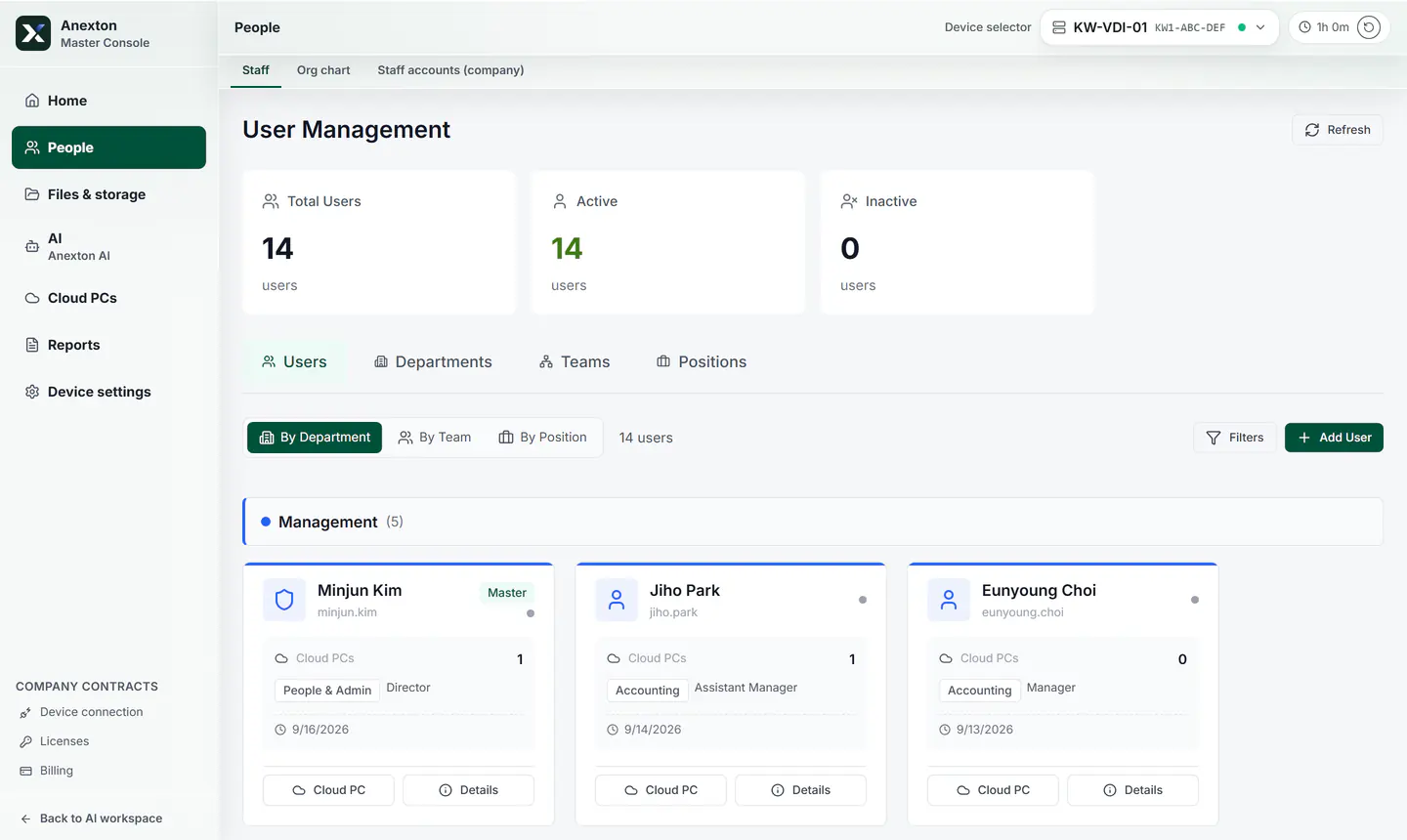
Staff cards by department show each person’s team, role, and assigned Cloud PC.
See total, active, and inactive staff first.
See each person’s team, role, and Cloud PC by department.
Add new staff here.
Register the company, departments, and employees as they exist in the office.
Assign one Cloud PC per employee.
Employees connect through Anexton Connect.
If a laptop breaks or changes, the Cloud PC stays on your office device.
Open the same screen from the office, home, or field.
Start with the features you need and expand when ready.
Download installer