Only assigned computers appear
Only the Cloud PCs assigned to you appear.




Sign in and only your assigned Cloud PCs appear. Open the same screen anywhere.
This app connects to your company Anexton. If you do not have one yet, see Anexton One first.
Only the Cloud PCs assigned to you appear.
No addresses or port numbers to memorize.
Install and sign in with your company account.
Assignment, revocation, and control belong to the company console.
Sign in, see only your assigned Cloud PCs, choose one, and it opens.
Assigning and revoking access happens in the company console. Departed employees are cut off there too.
Management lives in Anexton OneWithout an Anexton device at the office there is nothing to open. The app reaches your Cloud PC through the office device.
Explore adoptionWho uses which Cloud PC, and when it turns on and off, is set in the company console. Current screens, captured with a sample company’s made-up data.
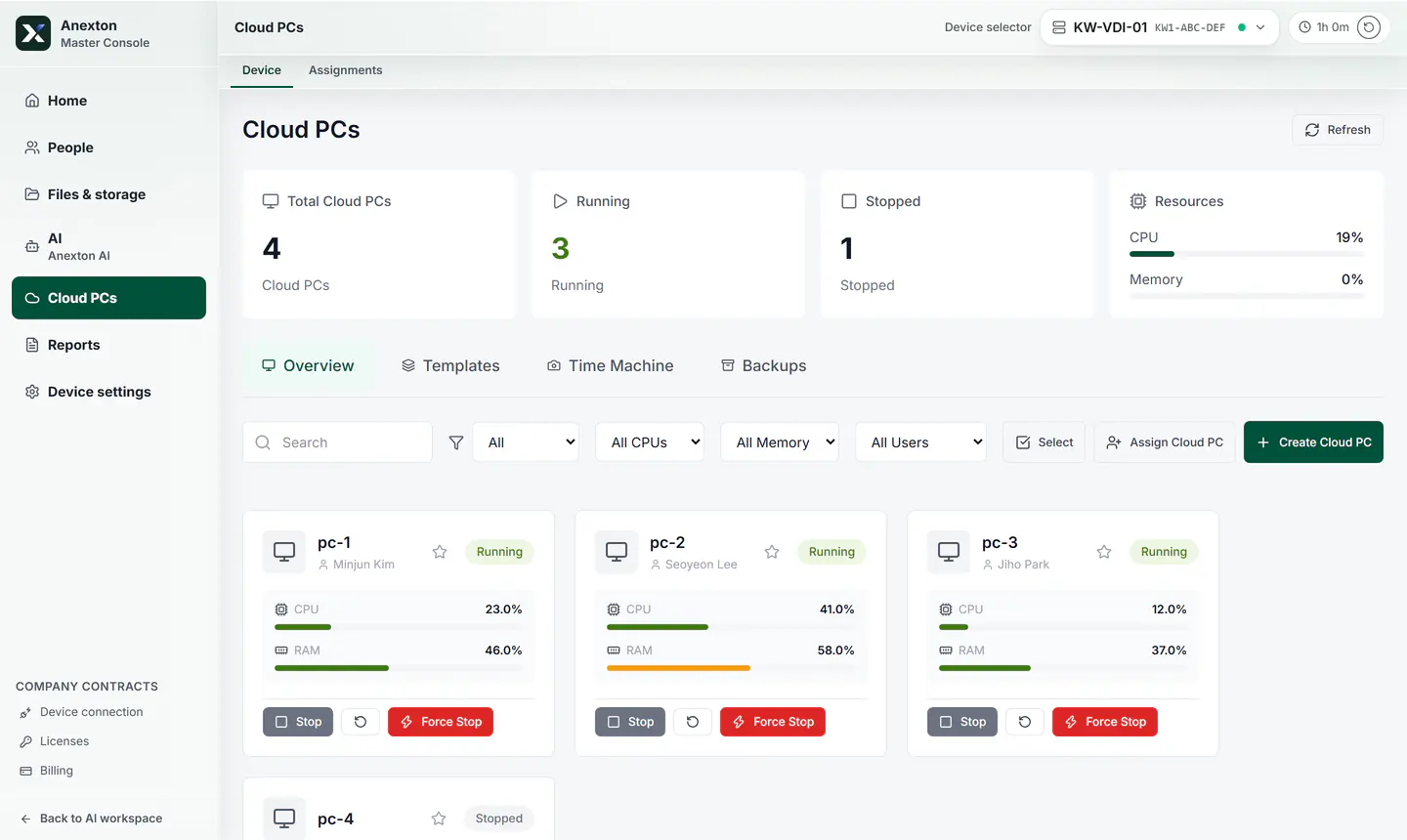
Each employee has an assigned Cloud PC, and only that one appears in the app.
Total, running, and stopped Cloud PCs and overall usage come first.
Each card shows whose Cloud PC it is and how busy it is.
Add a Cloud PC with one button when someone joins.
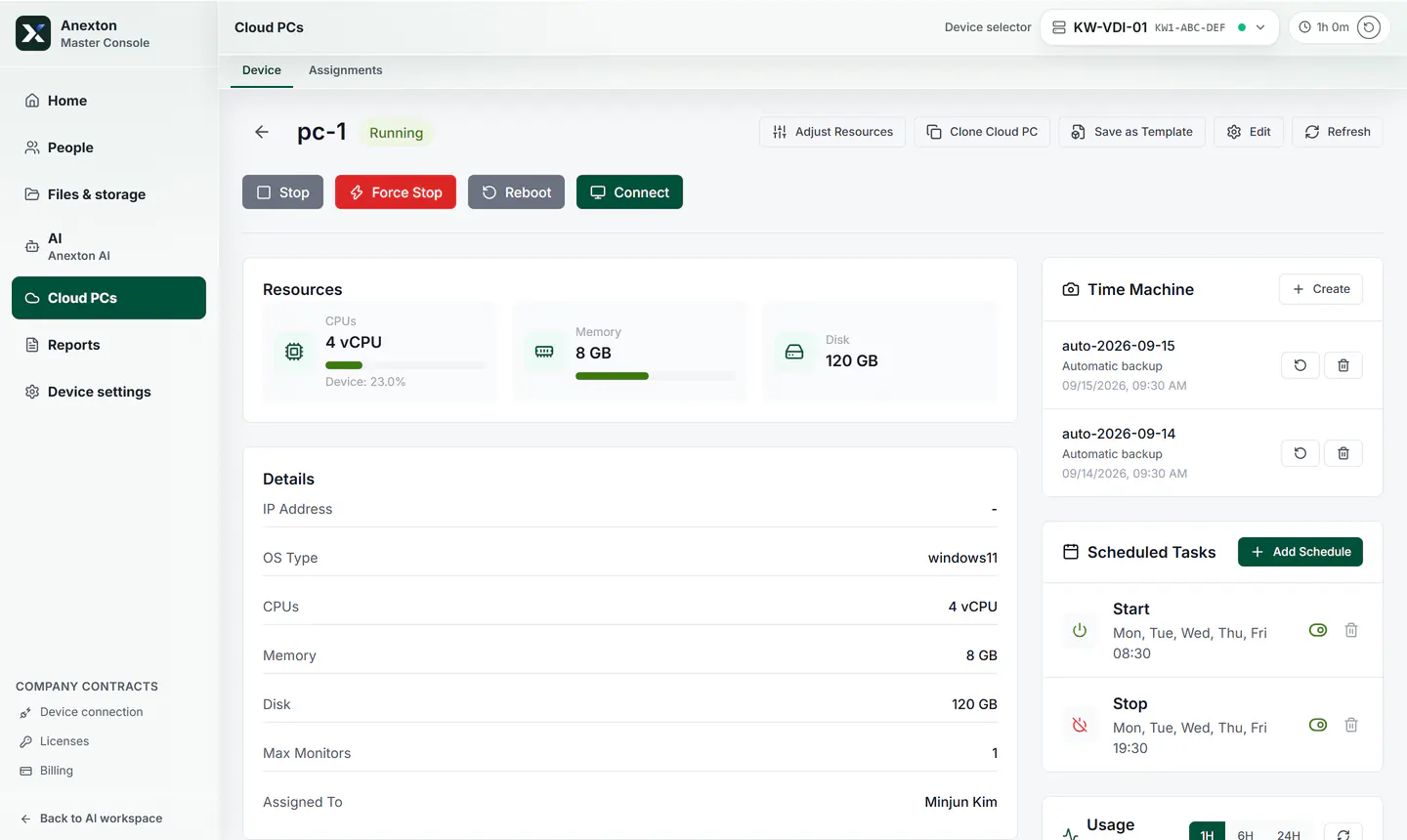
A weekday on/off schedule, automatic backups, and resources — all in one place in the console.
Stop, restart, and connect from one place.
See processor, memory, and disk at a glance.
Automatic backups are kept and listed by date.
Schedule it to start each weekday morning and stop in the evening.
Anexton is two products plus two components inside them. Check that you are in the right place.
Offices with 10–49 people that want setup and operations handled for them
Files, backup, workspaces, and AI agents on one office device. We handle installation, training, and operations.
Start: Contact us, then decide after a trial
Individuals and SOHO users comfortable installing it themselves
File storage, backup, and document AI you install on your own computer. Free to start, with hands-on settings.
Start: Free download, self-install
Employees at companies using Anexton
The Windows app that opens your Cloud PC. Not sold separately — it comes with the products above.
Start: Free download, sign in with your company account
Users of both products
The in-house AI agents that answer from permitted documents and draft recurring paperwork. Included in both products, not sold separately.
Start: Start with Enterprise or NAS & AI