


본문 바로가기Skip to main content
Virtual demo

See the real screens before you decide

Current console screens, captured with a sample company’s made-up data. No real customer data appears.

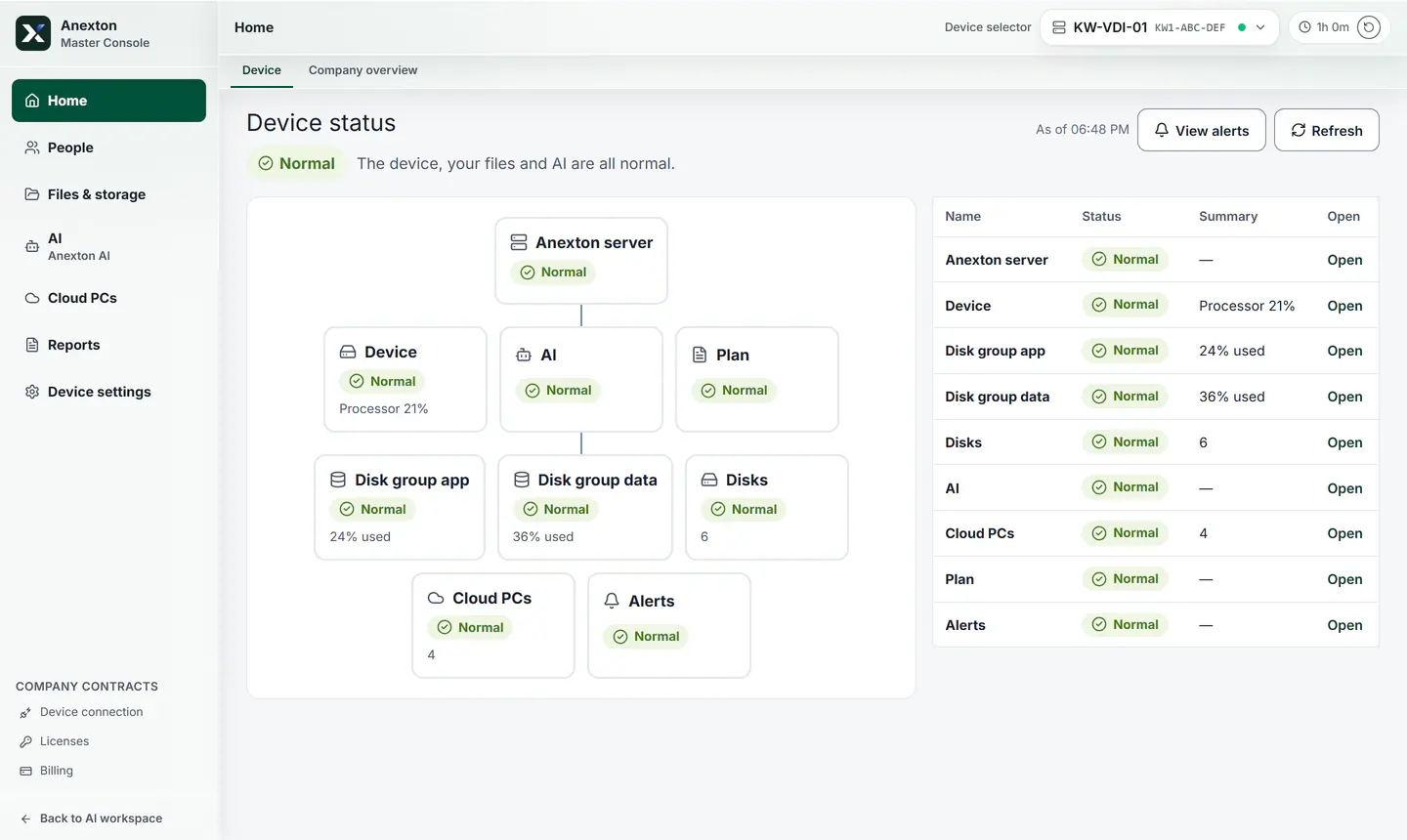
Device home screen showing at a glance that the device, AI, disks, and Cloud PCs are all fine

Company AI

Answers from company files, shows its sources, and takes on recurring paperwork.

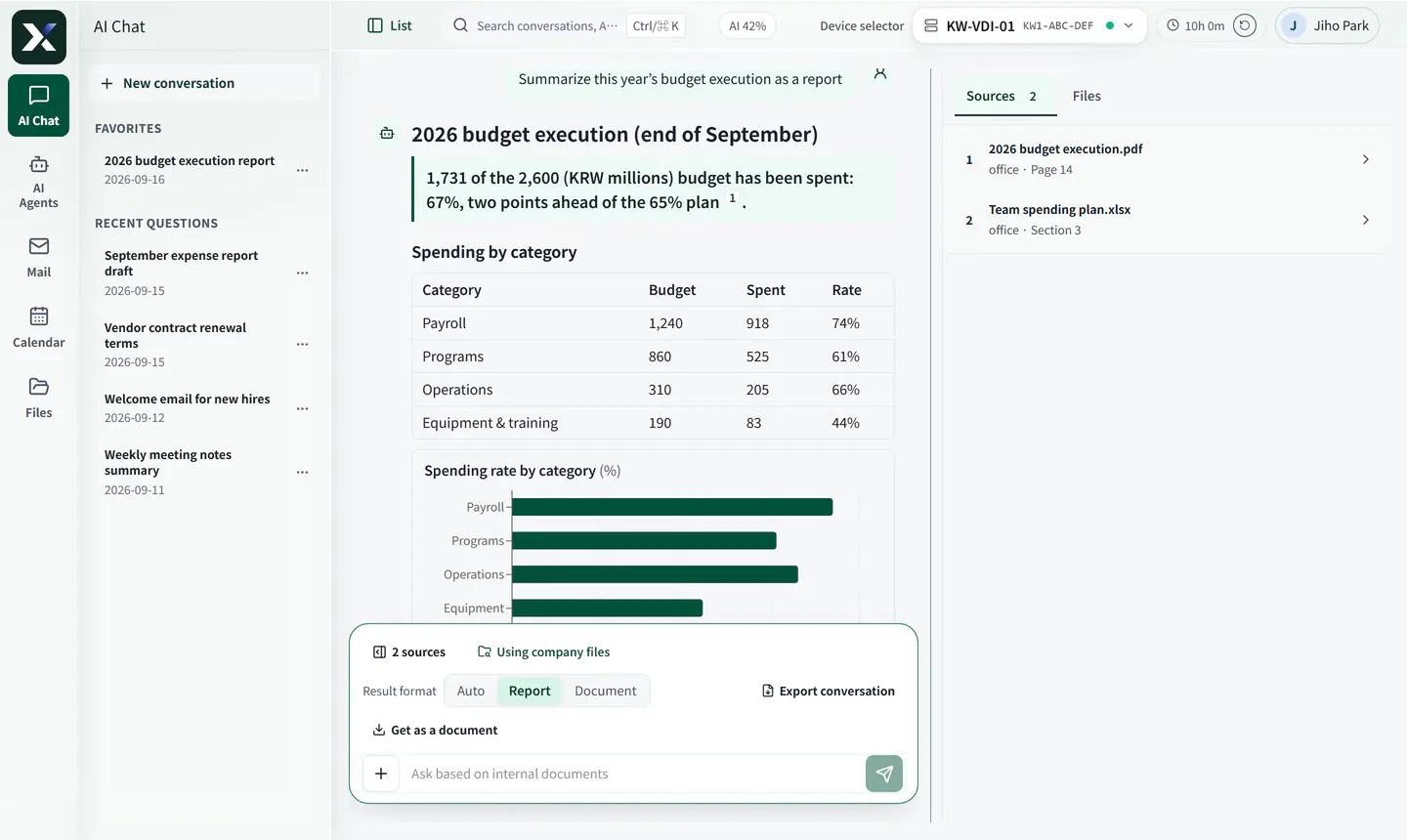
AI answer laying out this year’s budget execution with a table, a chart, and cited files

Answers with sources attached

Ask a question and it searches company files, then lays out the conclusion with tables and charts. The files and pages it used sit alongside.

  1. Answer first

    Every answer opens with the conclusion in a sentence or two.

  2. Tables and charts

    Numbers come back as tables and charts, laid out like a report.

  3. Source files

    The files and pages behind the answer sit right beside it.
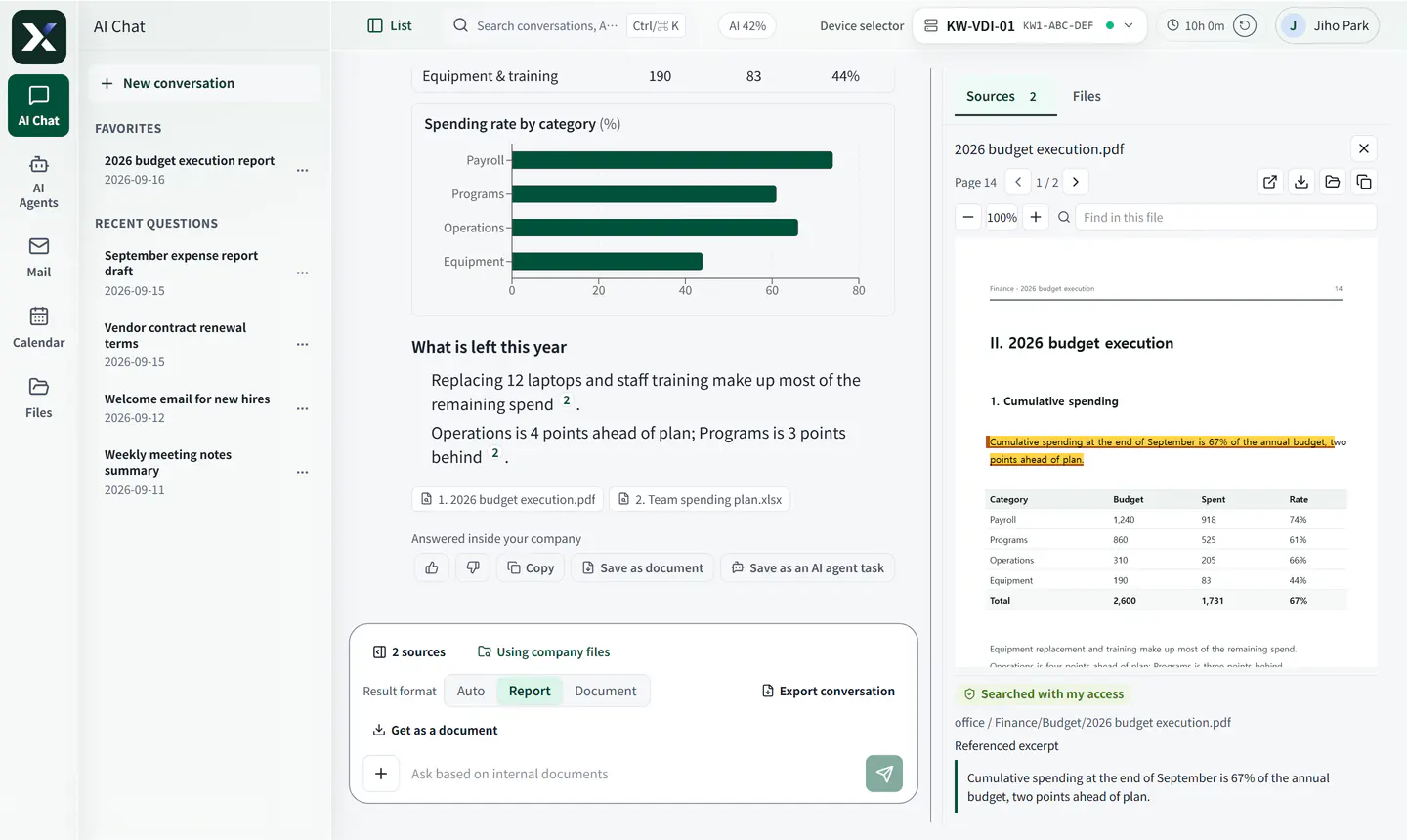
The cited page with the quoted sentence marked and labeled as found within the employee’s access

Same question, different employee

Only files the employee can open are used. Click a source and the exact page opens.

  1. Original page

    Click a source to open the exact page of that file.

  2. Quoted line

    The sentence used in the answer is marked on the page.

  3. Within my access

    Only files in folders the employee can open are used.

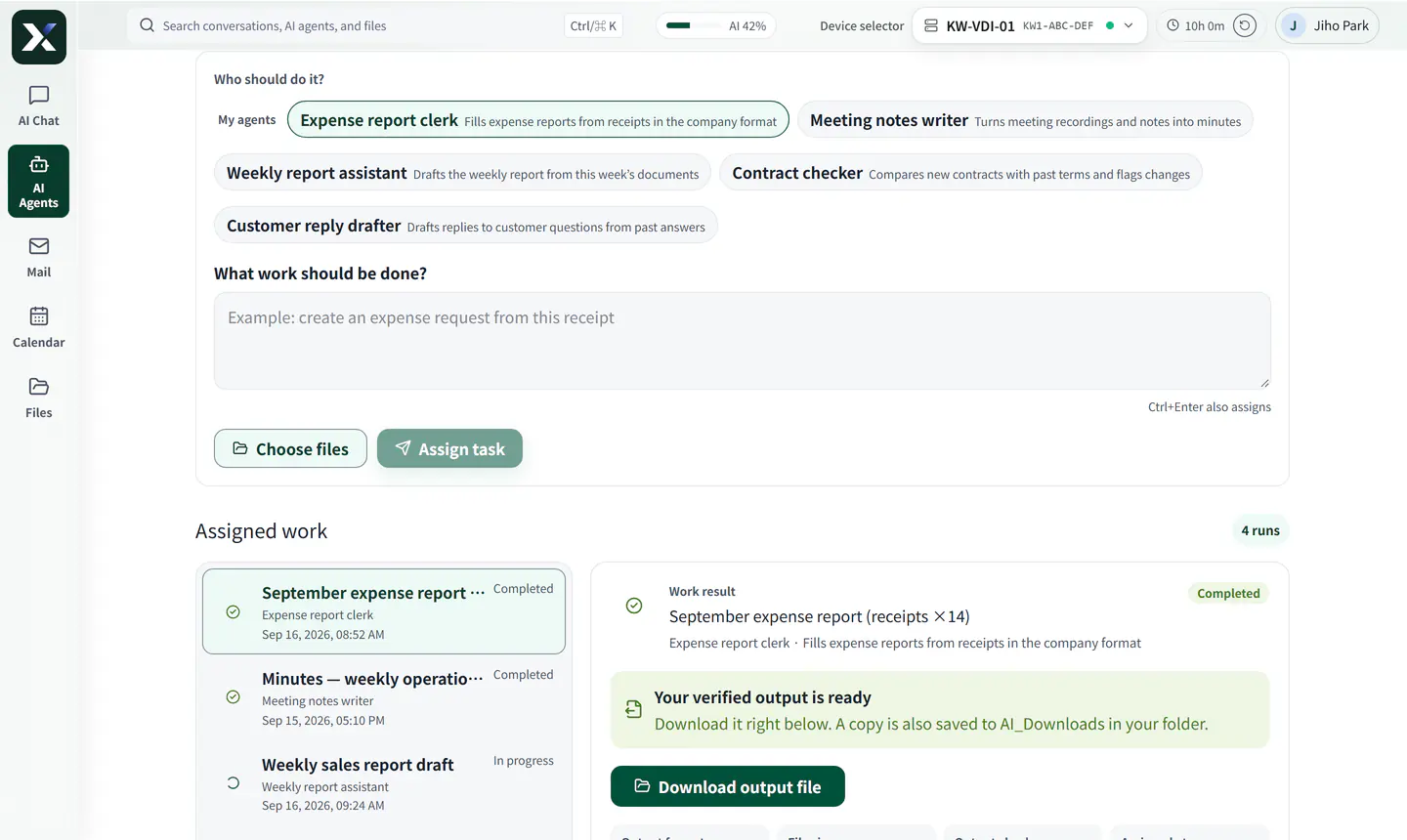
Choosing an AI agent, assigning the work, and getting a verified result file

Recurring paperwork, by AI agents

Hand over expense reports or minutes and get back a file in your company format. An employee checks it before it is used.

  1. AI agents

    Pick the AI agent for recurring work like expense reports or minutes.

  2. The request

    Describe the work in plain words and attach files.

  3. Finished file

    Review the file made in your company format, then download it.

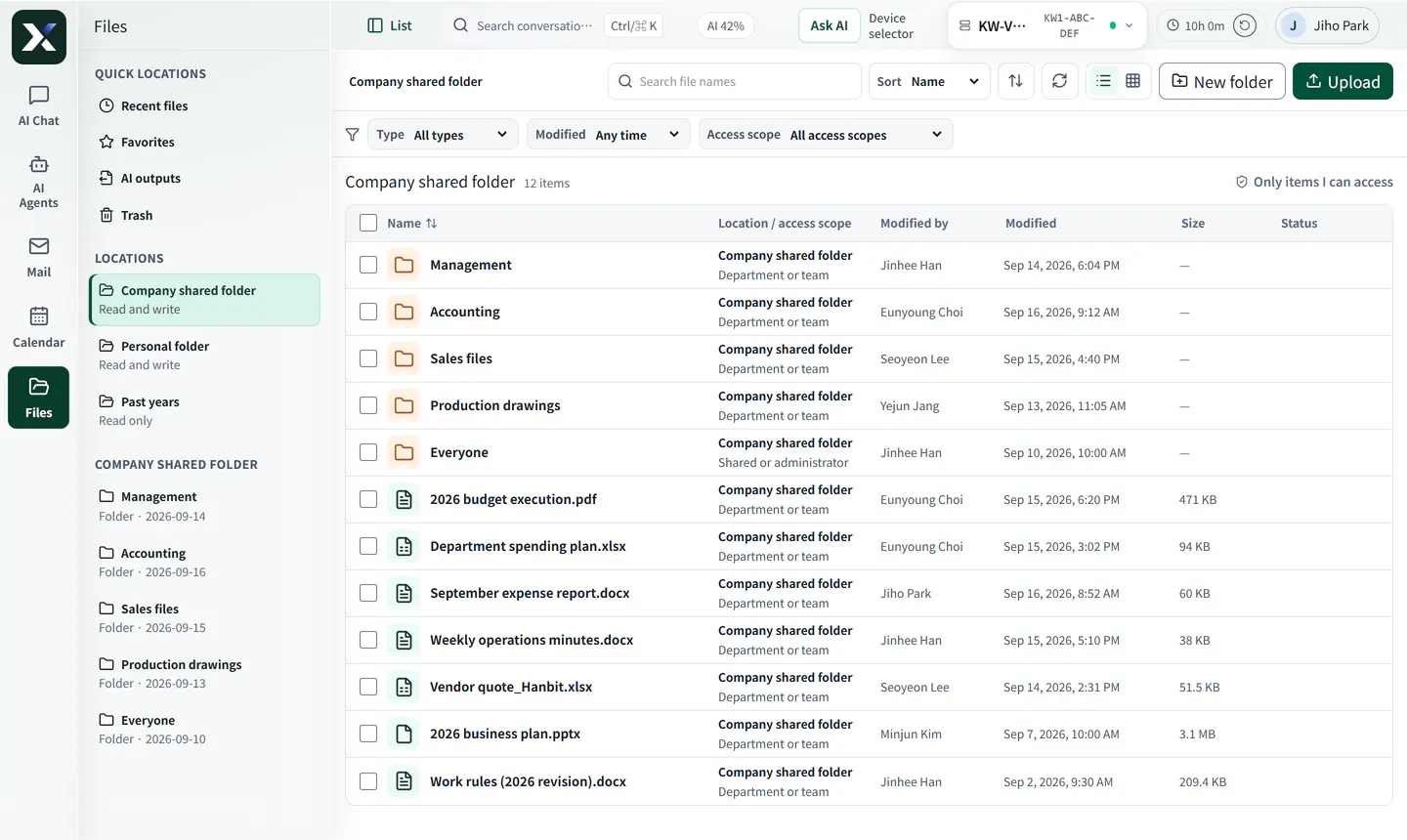
Company shared folder files opened in the browser

Files in the browser

Open and download company shared and personal files on the web. Only files you may open appear.

  1. My folders

    Company shared folders and your personal folder in one place.

  2. File list

    Open and download files in the browser — no extra app.

  3. My access only

    Only files you are allowed to open appear in the list.

People and access

Add staff, draw the org chart, and link folder access with lines.

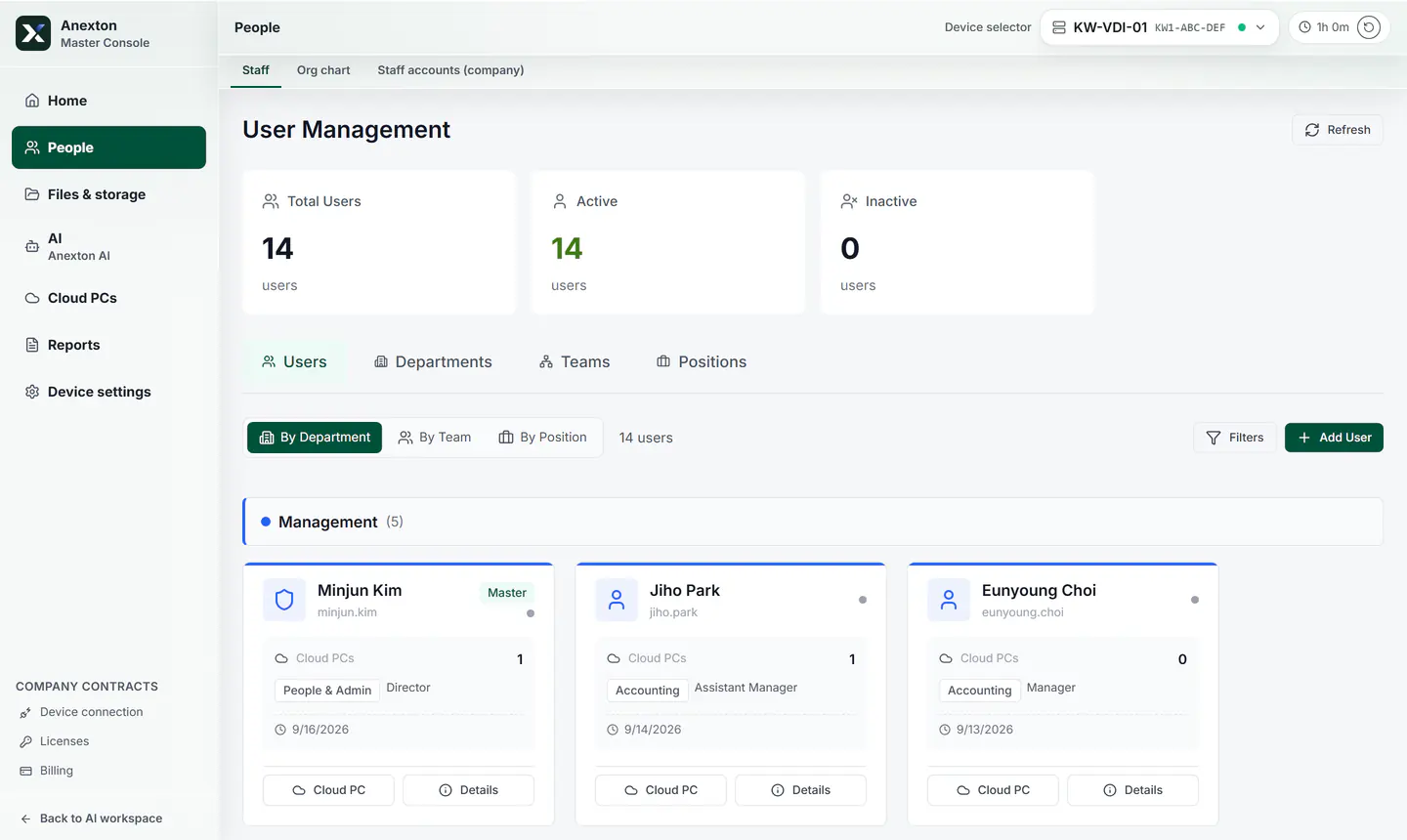
Staff cards by department with a headcount summary

Staff

Staff cards by department show each person’s team, role, and assigned Cloud PC.

  1. Staff at a glance

    See total, active, and inactive staff first.

  2. Staff cards

    See each person’s team, role, and Cloud PC by department.

  3. Add staff

    Add new staff here.

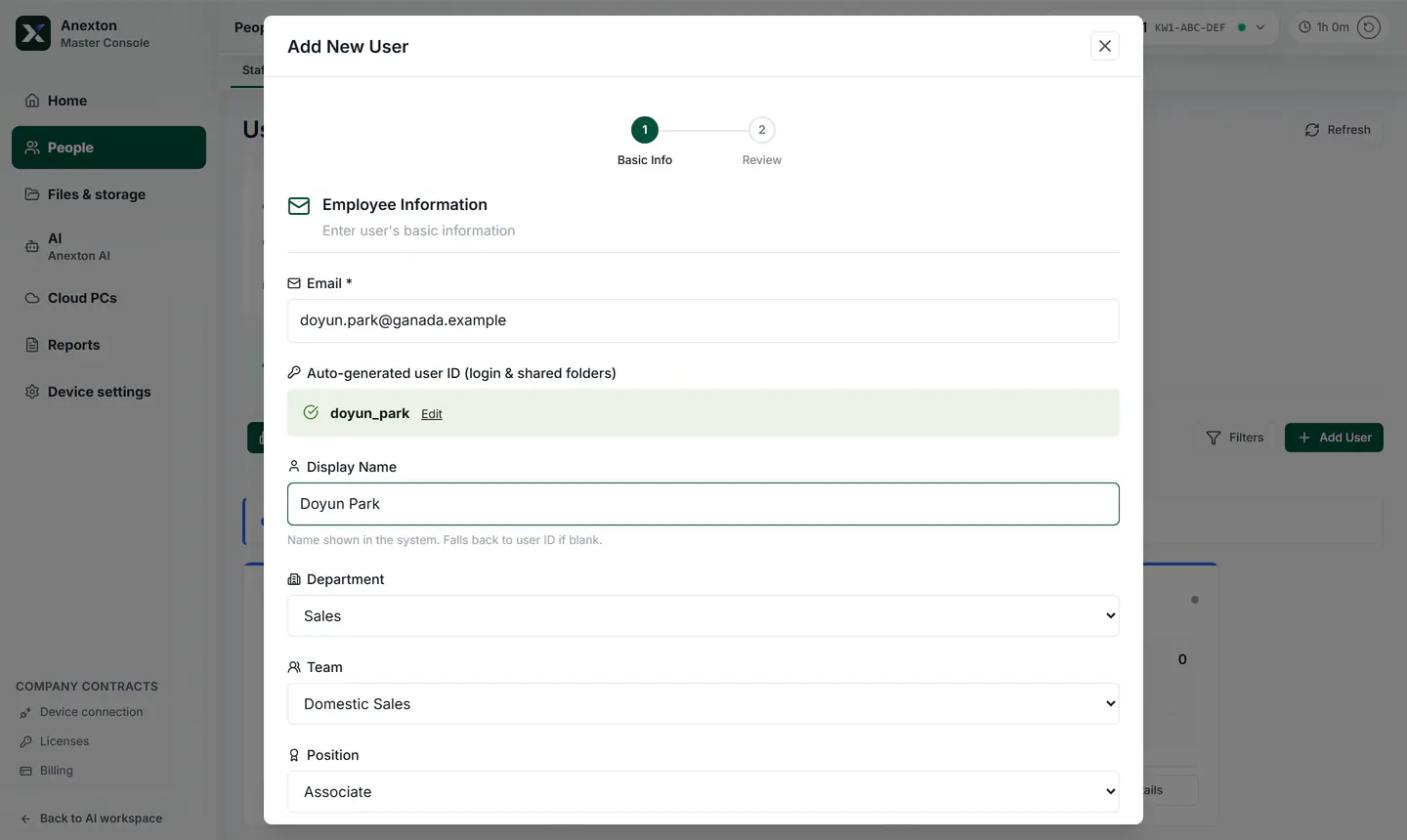
Adding a new employee’s email, name, department, team, and role

Add a new employee

Enter an email and name, then pick a department, team, and role. The sign-in ID is created for you.

  1. Basic details

    Enter an email and the sign-in ID is created for you.

  2. Team and role

    Pick a department, team, and role — access given to them applies.

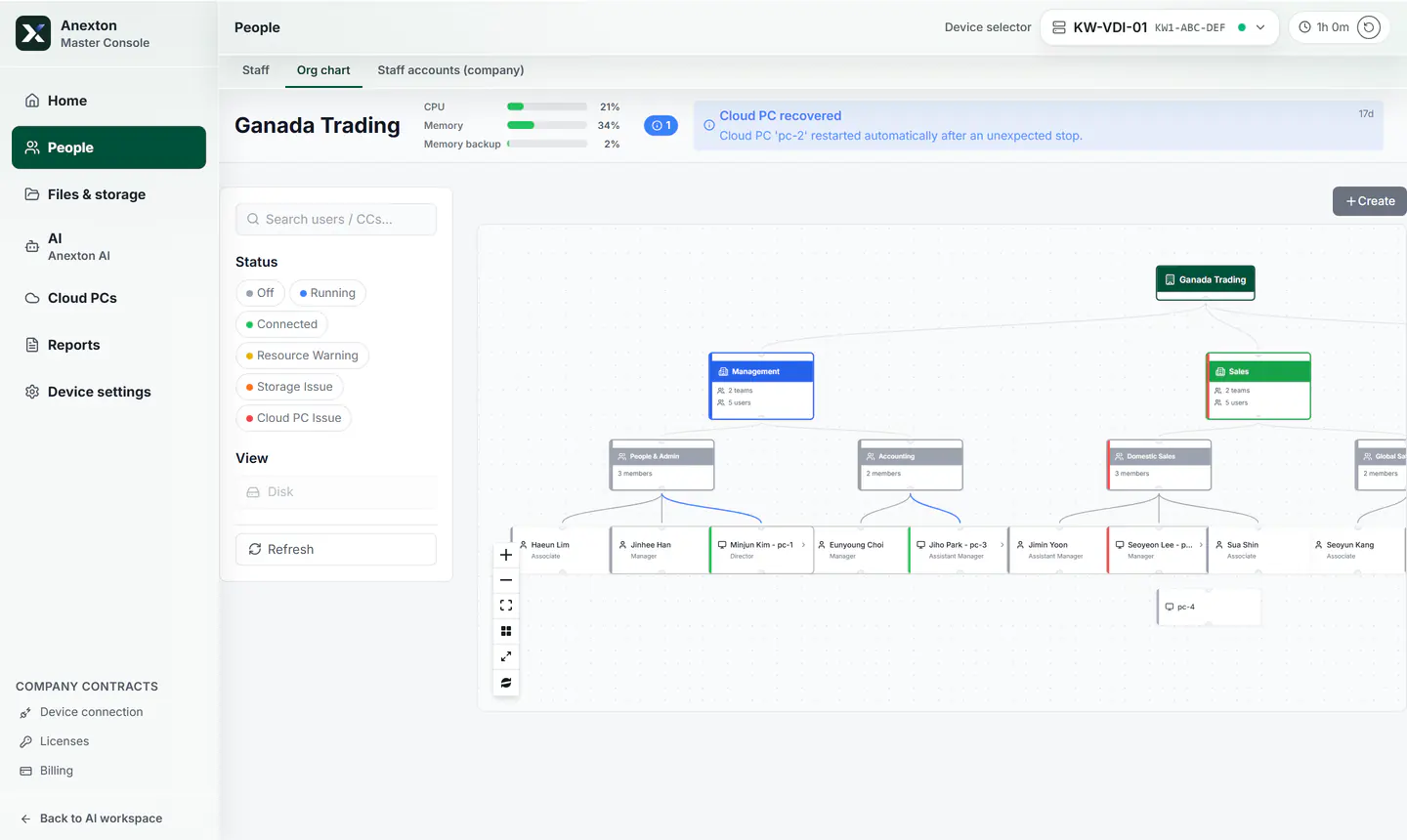
Org chart linking departments, teams, staff, and each person’s Cloud PC

Org chart

Departments, teams, and staff branch out from the company, with each person’s Cloud PC shown.

  1. Company

    Departments, teams, and staff branch out from the company.

  2. Departments and teams

    Each department shows how many teams and people it has.

  3. Staff and their PCs

    Each person shows the Cloud PC assigned to them.

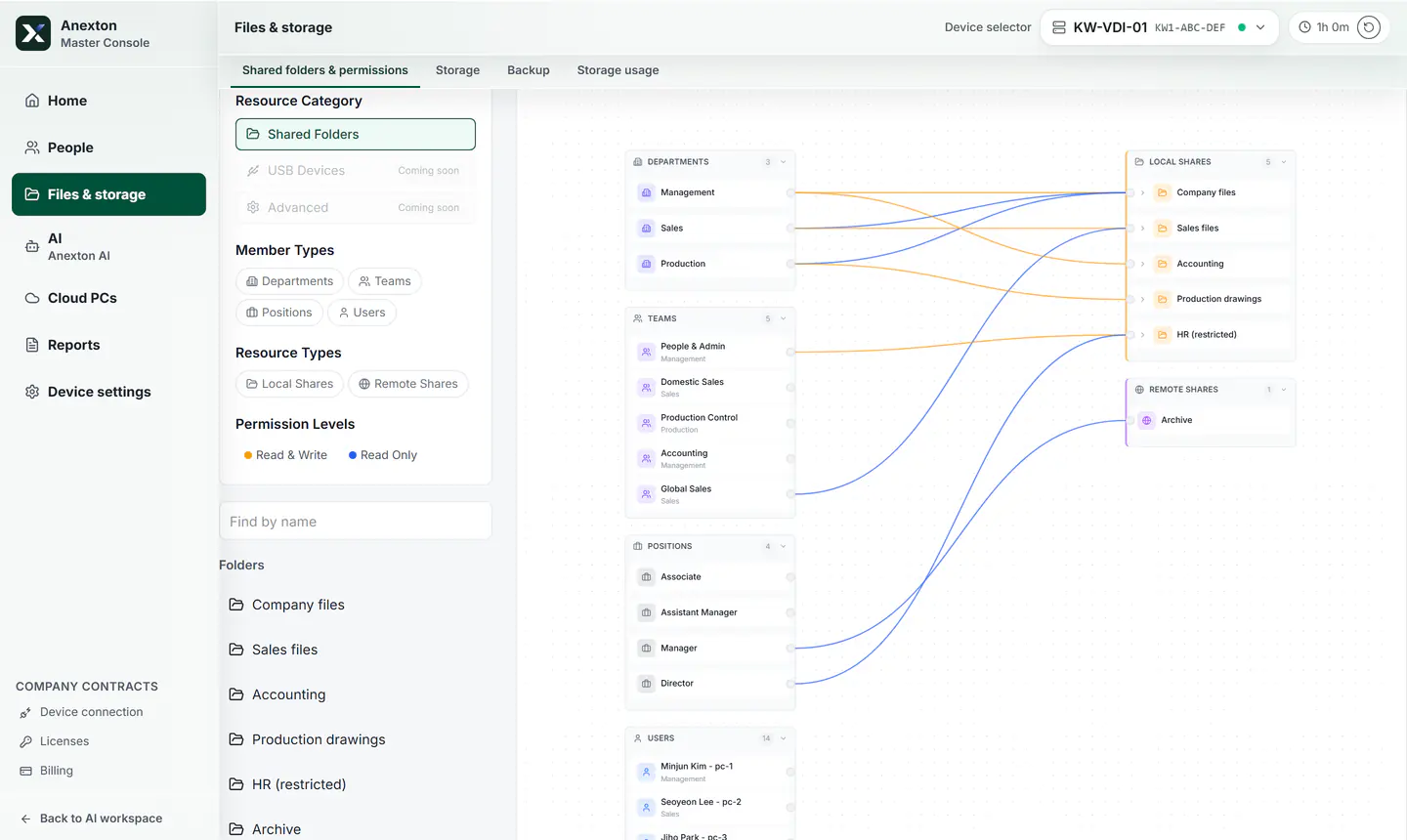
Access map linking departments, teams, and roles to shared folders

Shared folder access

See who can open each shared folder as lines — granted by department, team, or role, not one person at a time.

  1. Departments, teams, roles

    Grant access by department, team, or role — not one person at a time.

  2. Access lines

    Each line is real access: orange can edit, blue is read-only.

  3. Shared folders

    All company shared folders are gathered on one side.

Cloud PCs

Run, stop, and connect every employee’s computer from one office device.

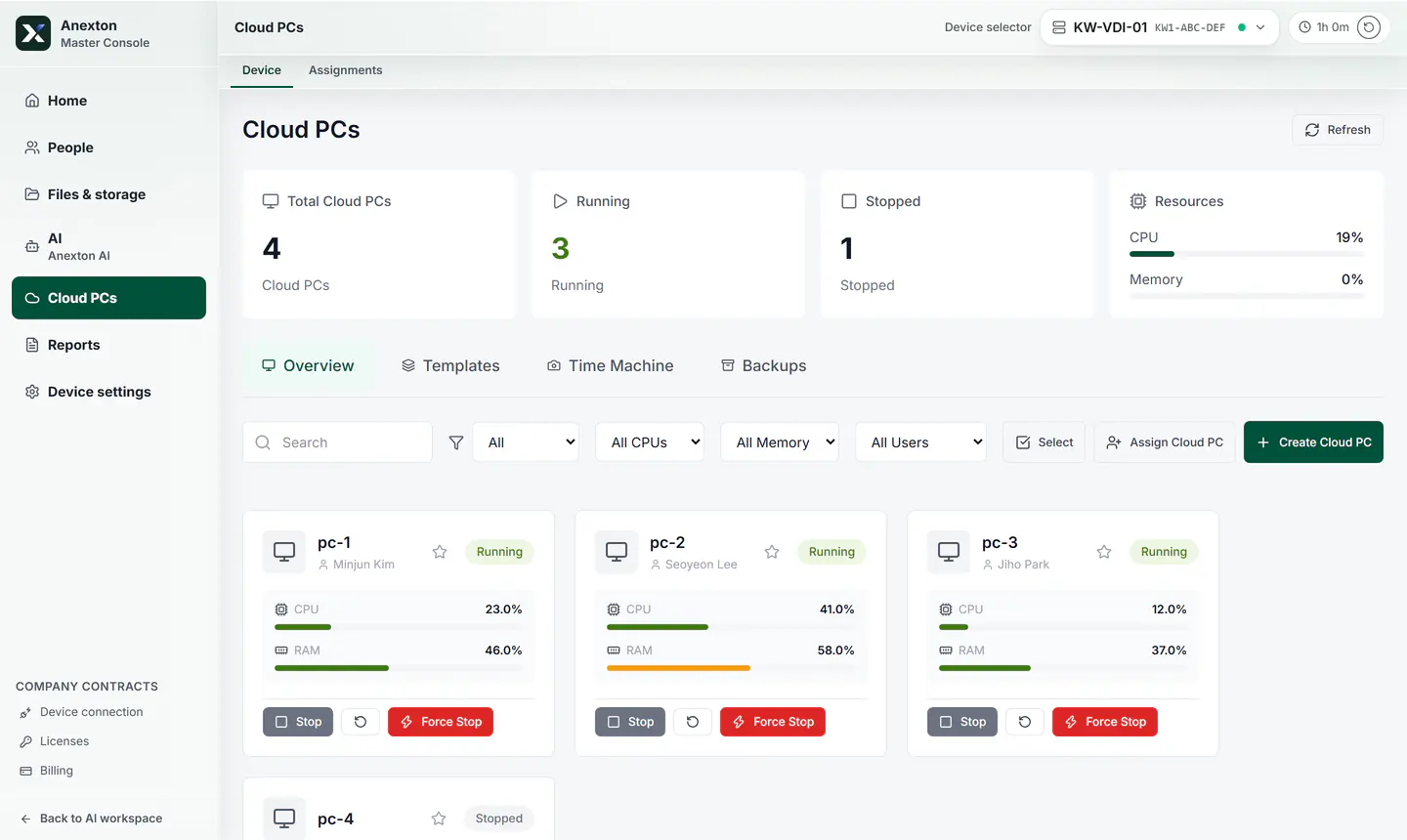
Each employee’s Cloud PC shown as a card with its status and usage

Cloud PC list

See how many are running and how busy each one is, one card per employee.

  1. At a glance

    Total, running, and stopped Cloud PCs and overall usage come first.

  2. One card per employee

    Each card shows whose Cloud PC it is and how busy it is.

  3. Create

    Add a Cloud PC with one button when someone joins.

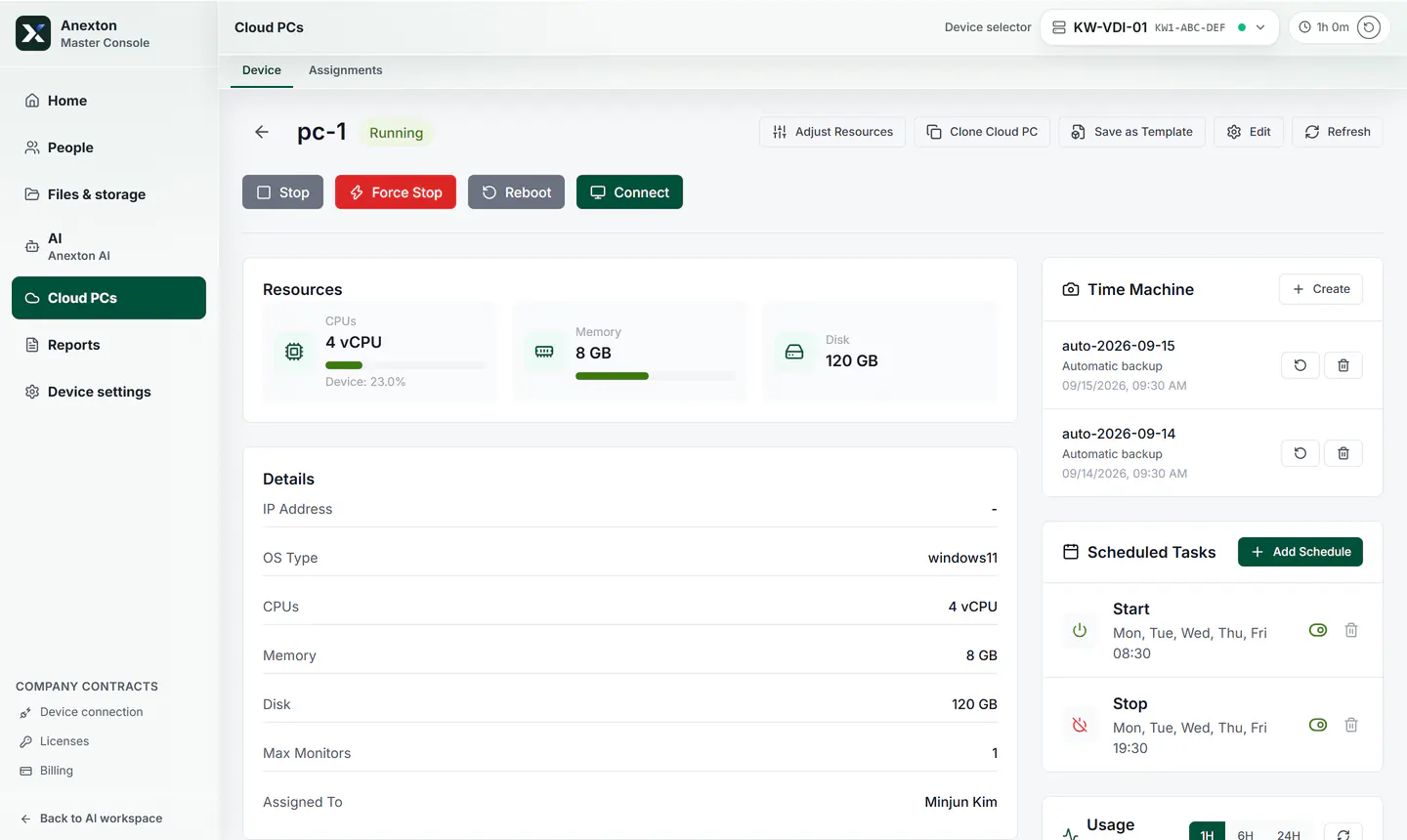
Cloud PC detail — connect button, resources, automatic backups, and on/off schedule

Cloud PC detail

The connect button, resources, automatic backups, and a weekday on/off schedule on one screen.

  1. Stop, restart, connect

    Stop, restart, and connect from one place.

  2. Resources

    See processor, memory, and disk at a glance.

  3. Automatic backups

    Automatic backups are kept and listed by date.

  4. On/off schedule

    Schedule it to start each weekday morning and stop in the evening.

Data protection and device health

Recover from a failed disk or a mistaken delete, and see in one sentence whether the device is fine.

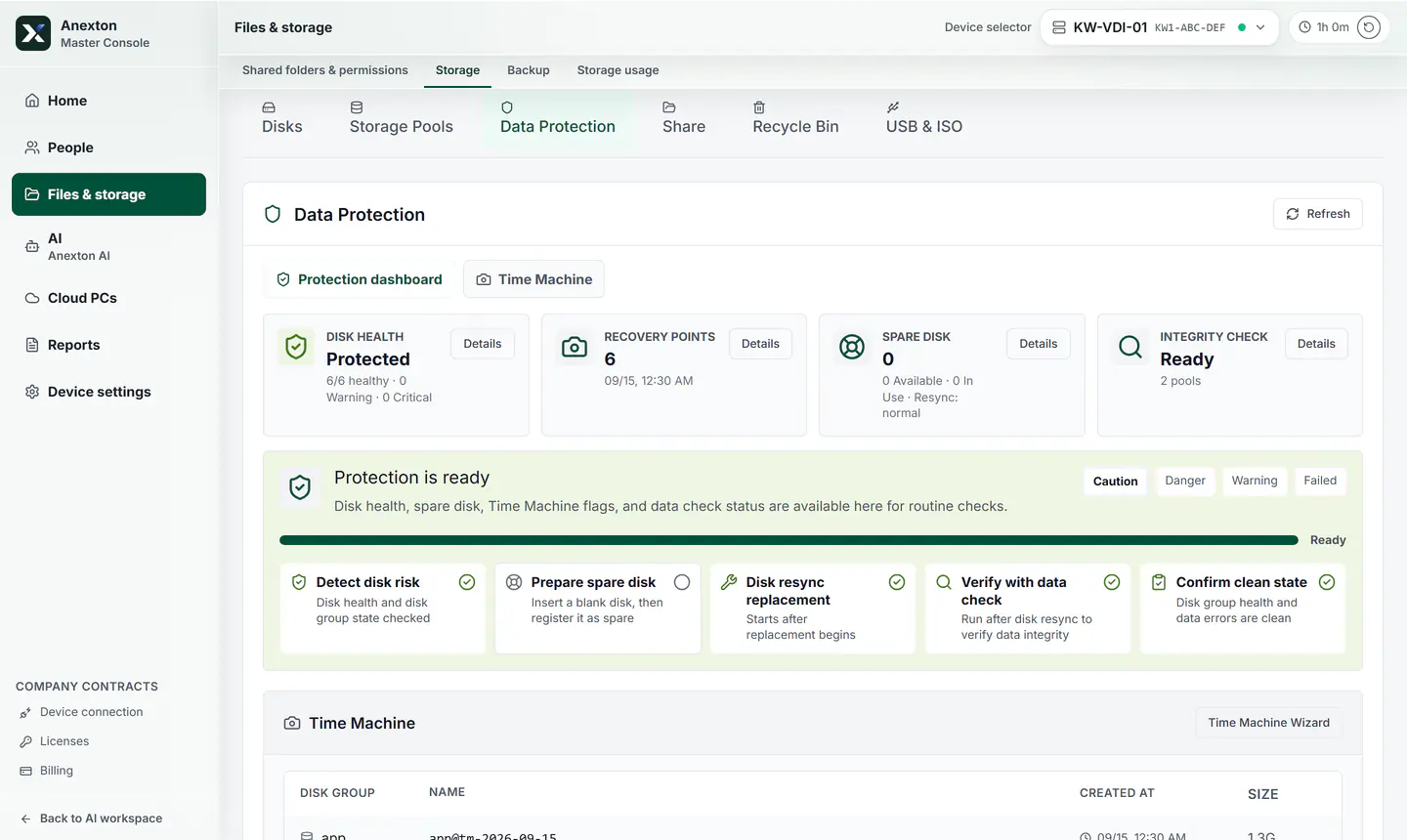
Data protection screen with disk health, restore points, and failure steps

Data protection

Disk health, restore points, and what happens step by step when a disk fails.

  1. Protection status

    Disk health, restore points, spare disks, and data checks as cards.

  2. Ready for a failure

    Shows step by step what happens if a disk fails.

  3. Restore points

    Roll files back to a point saved on any day listed.

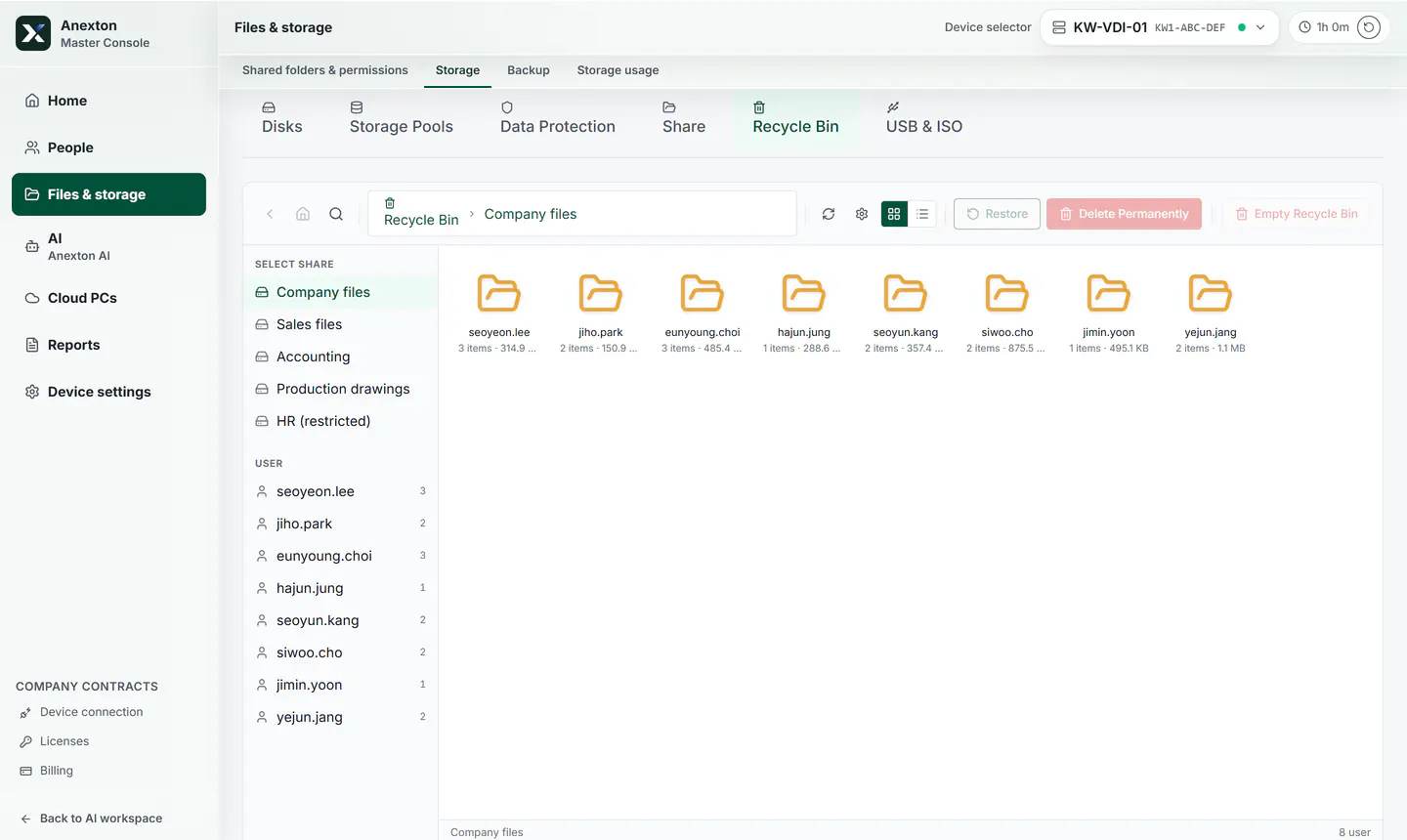
Recycle bin grouping deleted files by shared folder and by person

Recycle bin

Deleted files gather by shared folder and by person. Pick them and put them back.

  1. By folder and person

    Deleted files are grouped by shared folder and by who deleted them.

  2. Deleted files

    Deleted files stay here instead of vanishing.

  3. Restore

    Pick files and put them back where they were.

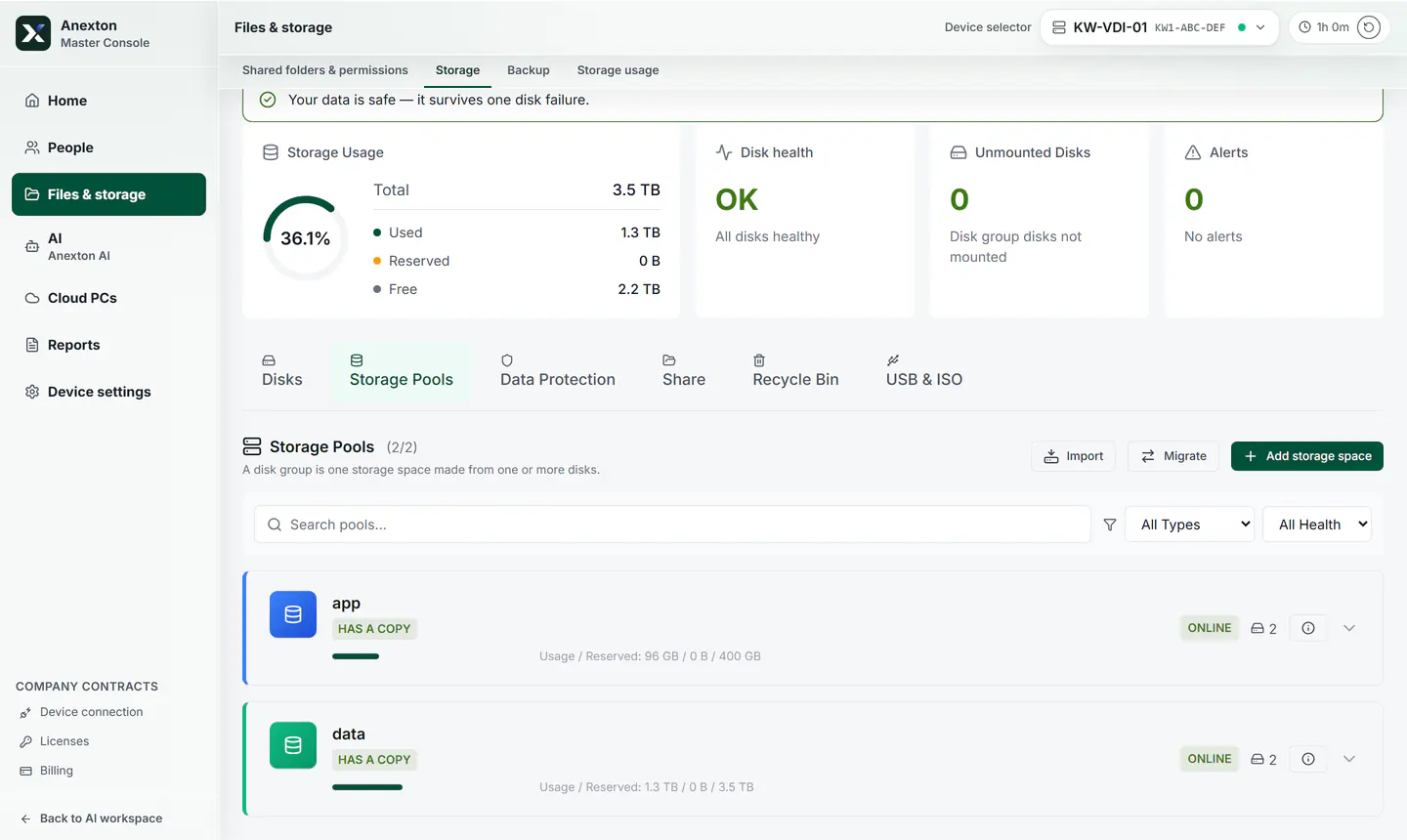
Disk group list with a line showing whether data is safe

Disk groups

Several disks work as one space, with a single line telling you whether files survive a disk failure.

  1. Safety at a glance

    Tells you first whether your files survive a disk failure.

  2. Disk groups

    Several disks work together as one storage space.

  3. Add storage

    Insert a disk and follow the guided steps to add space.

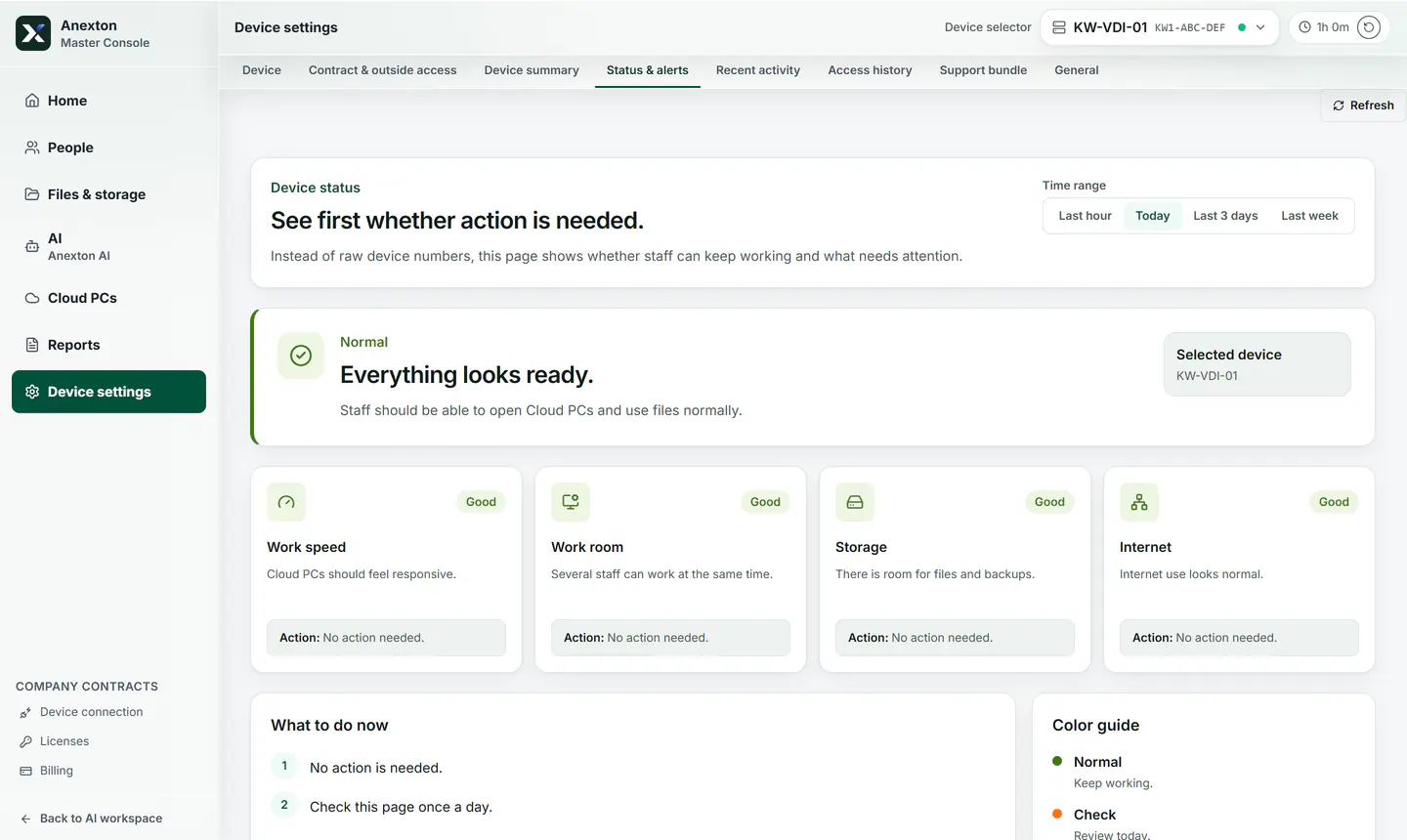
Device health screen with a one-line verdict and four plain-language signals

Device health

One sentence says whether everything is fine to use, with speed, storage, and internet in plain words.

  1. One-line verdict

    Tells you in one sentence whether everything is fine to use.

  2. Four signals

    Speed, workload, storage, and internet in plain words.

  3. What to do

    Only the steps you need, in order.

Let’s see whether it fits your office

Tell us your headcount and the folders you use, and we will scope the start together.

Talk to sales